
Setting up Browter as your Windows link handler
Follow the setup sequence, choose a fallback, and know what to check when a link bypasses your choice.
In this guide
Before you beginReview browsers and choose a fallbackSet the Windows associationsTry an ordinary link, then make a choiceIf a link still opens elsewhereKeep diagnostics privateBefore you begin
Browter is a browser chooser and Windows link handler. Install it from Microsoft Store on Windows 10 22H2 or Windows 11 23H2 or later, using an x64 or ARM64 device. It sends links to browsers already installed on your computer.
You need at least one working browser for fallback links. The wheel needs at least two enabled browser or profile entries; two profiles in a single browser work too. Create profiles in the browser before adding them to Browter.
Review browsers and choose a fallback
The first-run wizard takes you through Find browsers, Fallback, Hotkey, Link handler, and Done. Review the discovered entries and choose your everyday browser or profile as the fallback. It receives ordinary links when you have not armed another choice.
In the wizard, you can show discovered profiles as separate slices. Later, Settings → Browsers lets you rescan to add discovered profile entries, add a browser manually, and test a launch. Confirm that each entry opens the intended browser and profile. Renaming its label does not change its executable or launch arguments. The wheel uses entries enabled for the wheel, not every entry you save.
Set the Windows associations
Use the wizard’s Windows settings action, or open Settings → Apps → Default apps yourself. On Windows 11, locate Browter and select Set default. On Windows 10, select Browter under Web browser. Review HTTP and HTTPS associations, then return to Browter to finish setup. Windows controls these choices; Browter does not force protected default-app registry values.
Windows screens can differ by version and device policy. Microsoft’s default-app guide explains how to set defaults by application or protocol.
Try an ordinary link, then make a choice
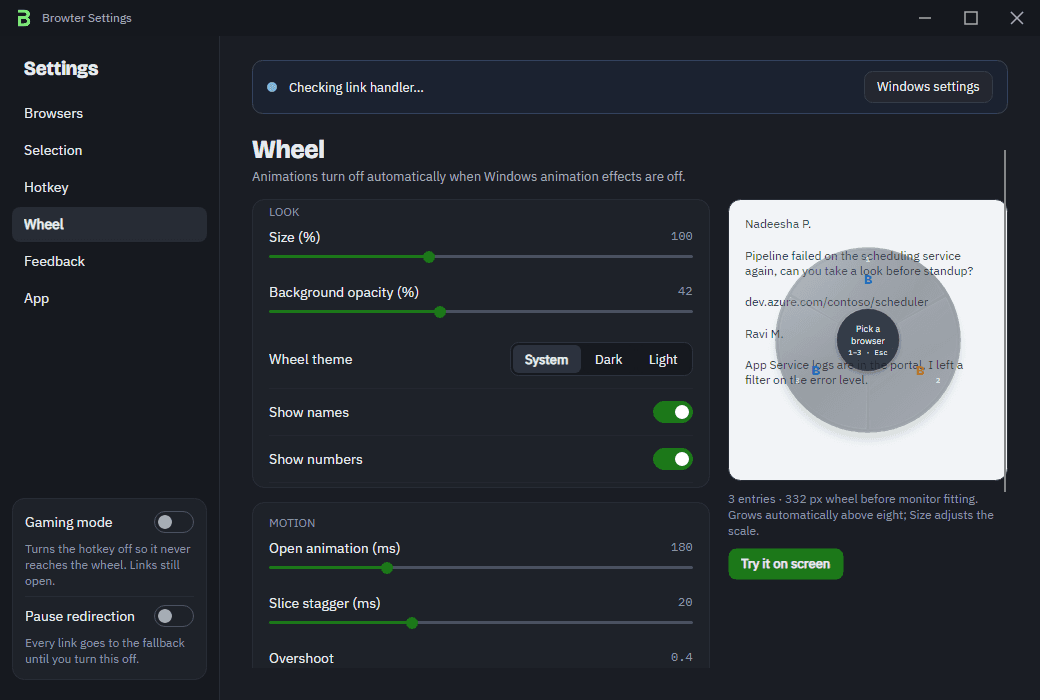
First click an HTTPS link from an app that honors Windows defaults. With no target armed, it opens in your fallback browser. Then hold Alt + Q, move toward another browser/profile slice, and release to select it. You can also tap the shortcut and click an entry. Click a link while the choice is armed.
The countdown is 12 seconds by default, adjustable from 3 to 60 seconds in Settings → Selection. A normal selection is consumed by the next eligible link. Sticky selection, when enabled, keeps the choice active until the countdown expires. Change the shortcut in Settings → Hotkey if Alt + Q conflicts with another app.
With Shift + click enabled, hold Shift when clicking an eligible link. When Windows hands the link to Browter, it holds the request and opens the wheel for that link. This does not intercept links that bypass Windows defaults. Escape cancels the wheel and sends pending links to fallback. See how it works for selection and cancellation details.
If a link still opens elsewhere
Check both HTTP and HTTPS associations. Some source apps use their own browser preference or an embedded viewer; links inside a browser can stay in that browser. Changing Windows defaults cannot override every application’s behavior.
Test the target entry again if a browser or profile was moved or removed. Check that selection is not paused, gaming mode is not active, and the trial is active or the app is purchased. Trial expiry disables selection but leaves fallback links working. Use the support checklist to narrow down the handoff.
Keep diagnostics private
Recent links and diagnostic files can reveal browsing information. Ordinary logs redact address paths, queries, and fragments, but hostnames and entry labels can still be sensitive. Verbose logging can contain complete addresses. Disable it and review files before sharing them. Do not post private client links or credentials in public issues.
The Privacy Policy explains local storage, recovery records, and deletion. The website demonstration uses synthetic addresses; it does not inspect your computer or open a real browser.
A little choice, right before the click.
See how Browter’s browser wheel is designed to help you pick the destination for your next link.